
Why Your Bluetooth Keeps Dropping — and What's Behind It
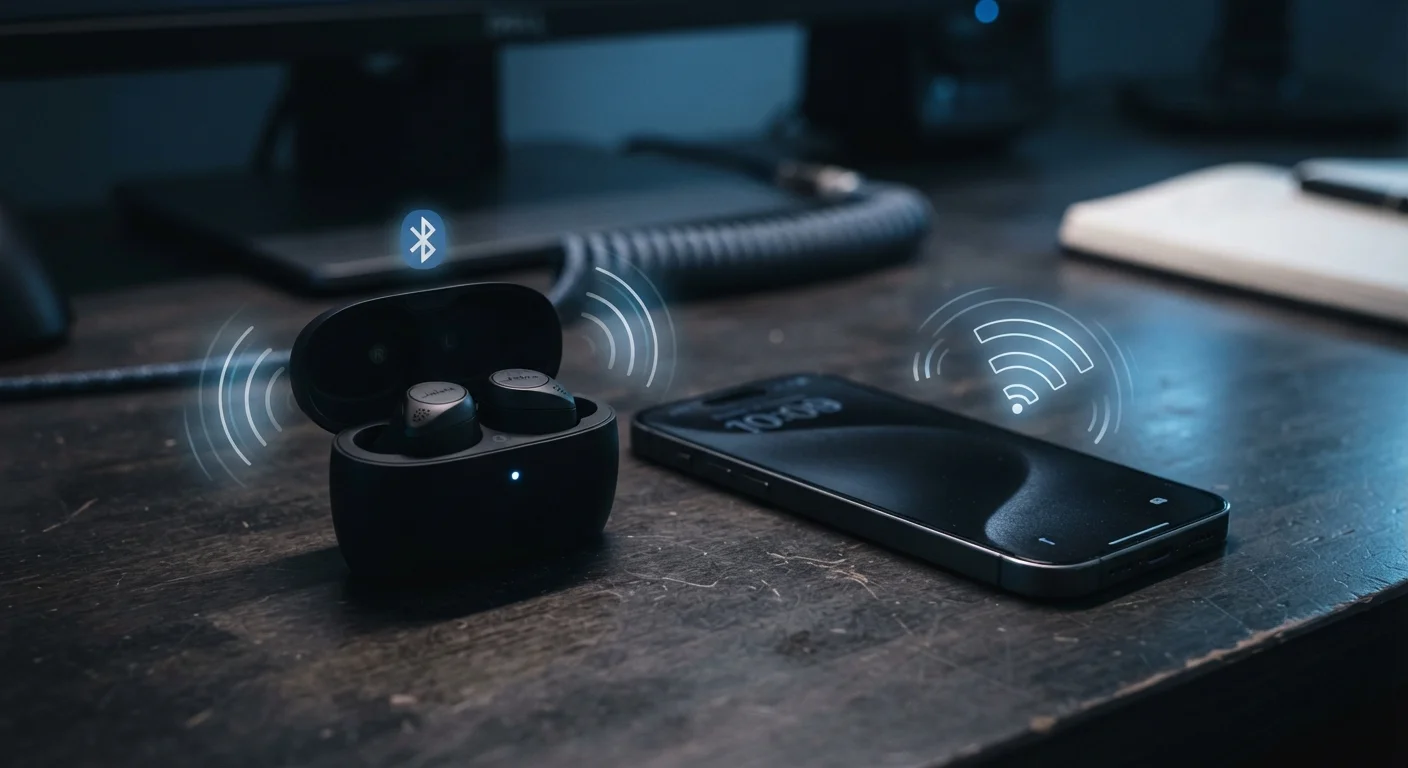
Photo credit: SyndicateExpert.com | Information At The Ready
Bluetooth drops aren't random. Interference, device pairing limits, and codec mismatches all play a role. Here's what's actually happening.
Key Takeaways
- Bluetooth interference from Wi-Fi and microwaves is a frequent and underappreciated cause of signal drops.
- Most Bluetooth devices can only maintain a limited number of stable simultaneous connections.
- Physical obstacles like walls and the human body significantly reduce effective Bluetooth range.
- Audio codec mismatches between devices can cause stuttering that feels like a connection problem.
- Restarting or re-pairing devices often clears software-level issues behind persistent drops.
The Real Reasons Bluetooth Drops
Bluetooth is designed to be resilient — it uses a technique called adaptive frequency hopping, constantly switching between dozens of radio channels to dodge interference. But that resilience has limits, and everyday environments push against those limits constantly. The result is the familiar frustration: audio cutting out mid-song, a wireless keyboard skipping characters, or a fitness tracker that seems to lose its connection whenever you walk into the kitchen.
Understanding what's actually happening at the radio level takes most of the mystery out of it. Bluetooth doesn't fail randomly. It fails for specific, diagnosable reasons — and once you know what they are, many are fixable without buying anything new.
Myth
Bluetooth drops are just a sign that the device is defective or cheaply made.
Fact
Most Bluetooth drops stem from environmental interference, firmware issues, or protocol mismatches — not hardware defects.
It's natural to blame the hardware when audio cuts out or a device disconnects, but the vast majority of Bluetooth issues are environmental or software-related. Radio frequency interference, an overcrowded pairing list, or a mismatch between Bluetooth versions on two devices are far more common culprits. Before assuming a device is broken, it's worth ruling out these external factors first.
Myth
Bluetooth has a reliable 30-foot range regardless of what's in between you and the device.
Fact
Quoted range figures assume open air — walls, furniture, and the human body itself can cut effective range dramatically.
Bluetooth range ratings are measured in ideal, obstacle-free environments. In a real home or office, a single interior wall can reduce usable range by a third or more. The human body, which absorbs radio waves, is particularly effective at blocking signal — which is why keeping your phone in a pocket on the opposite side from your earbuds sometimes causes stuttering. Even a couch cushion or a refrigerator can create a dead zone.
Myth
Once two devices are paired, the connection is always stable unless one of them has a problem.
Fact
Pairing stores credentials, but active connection quality depends on real-time radio conditions that change constantly.
Pairing is just an agreement between devices — it doesn't guarantee signal quality. Every time a connection is active, both devices are negotiating radio frequency channels in real time using a process called frequency hopping. If the environment is noisy (other devices, physical obstacles, competing signals), that negotiation becomes harder and drops occur. The paired relationship is intact; the radio environment is the variable.
Myth
Audio stuttering over Bluetooth always means the connection is weak.
Fact
Stuttering can also result from codec mismatches, processor load, or software bugs — not just signal strength.
Bluetooth audio relies on codecs — compression formats that encode audio on one end and decode it on the other. If your phone is streaming in a codec your headphones don't fully support, or if the device's processor is under heavy load, audio can stutter even with a strong signal. Common codecs include SBC (the baseline), AAC, and aptX. When two devices agree on a higher-quality codec, that negotiation can occasionally introduce instability. Checking your device's active codec in developer settings (on Android) can help diagnose this. For a broader look at how wired and wireless audio differ at a technical level, see our piece on wired vs. Bluetooth trade-offs.
Myth
Turning Bluetooth off and on fixes nothing — it's just an old tech-support cliché.
Fact
Toggling Bluetooth resets the device's active connection stack, which genuinely clears certain software-level hang states.
When a Bluetooth stack — the software layer managing connections — gets into a bad state due to a timing error or a failed handshake, it can persist until cleared. Toggling Bluetooth off and on forces the stack to reinitialize, which resolves those software-level glitches without requiring a full device restart. It's not a cure-all, but for transient drops it addresses a real class of problem. If toggling doesn't help, a full restart of both devices is the next logical step.
Practical Steps That Actually Help
Most Bluetooth problems fall into three buckets: interference, device state, and configuration. Interference is addressed by reducing competing signals — moving your router to the 5 GHz band for nearby devices, keeping your Bluetooth source device on the same side of your body as your earbuds, and minimizing physical obstacles between devices. Device state problems — where the connection software gets stuck — are usually resolved by toggling Bluetooth, restarting both devices, or clearing and re-establishing the pairing.
Don't Overlook Your Device's Pairing List
Many Bluetooth devices store a limited number of paired connections — often between 5 and 10. When that list fills up, the device may automatically drop or refuse new connections, or cycle unpredictably between saved ones. Periodically clearing old, unused pairings from both the peripheral and your phone or computer can prevent this silent problem from surfacing.
Configuration issues, like codec mismatches or overfull pairing lists, require a little more investigation but are equally correctable. On Android phones, enabling developer options gives access to a Bluetooth codec selector, letting you manually choose a codec both devices support cleanly. On iOS, codec negotiation is handled automatically, but keeping both devices updated tends to keep that negotiation working correctly.
The broader point is that Bluetooth reliability is largely within your control. The technology itself is mature and robust — the problems almost always live at the edges, in the environment or settings around it.

Author
Tech & Devices Editorial Team
Tech & Devices Editorial Team is the collective byline for our editorial team and contributor network. Articles published under this byline or an editorial pen name are researched, written, and reviewed according to our editorial standards for clarity, consistency, and independence before publication.
View all articles →