
Securing Your Home Network Without an IT Degree
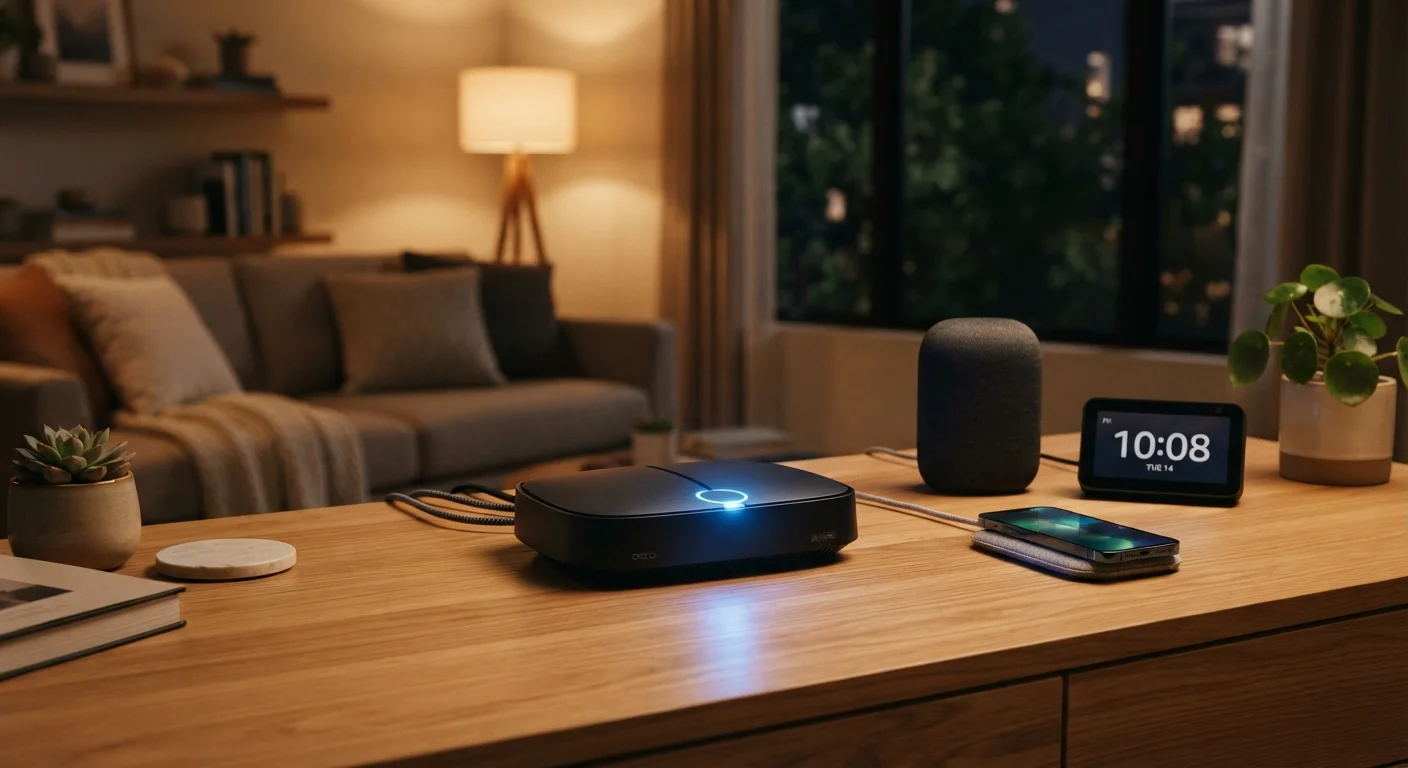
Photo credit: SyndicateExpert.com | Information At The Ready
In this article
Your router is the front door to every device in your home. These practical steps strengthen your home network without requiring technical expertise.
Key Takeaways
- Changing your router's default admin credentials is the single most impactful first step.
- WPA3 or WPA2 encryption prevents most casual eavesdropping on your Wi-Fi traffic.
- A separate guest network isolates smart home devices from your personal computers and phones.
- Keeping router firmware updated patches known security vulnerabilities automatically.
- Disabling unused remote-access features reduces the number of entry points attackers can exploit.
Why Your Home Network Is Worth Protecting
Every device in your home — phones, laptops, smart TVs, thermostats, even baby monitors — connects to the internet through your router. That single device is, in effect, the front door to your entire digital life. Leave it configured with factory defaults and you've left that door unlocked.
The good news: hardening a home network doesn't require an IT background. It requires about 30 minutes and the willingness to log into your router's settings page. If you've never done that before, start with our grounded introduction to online safety, which covers the foundational habits that make every step below more effective.
Most home network vulnerabilities are exploited not by sophisticated hackers, but by automated tools scanning for routers that still use default passwords or outdated security settings. Closing those gaps puts you well ahead of most targets.
What you will need
Step-by-Step: Locking Down Your Router
The steps below work on the vast majority of consumer routers. The exact menu labels vary by manufacturer, but the settings themselves are universal. Your router's model number (printed on the device) will help you find a manufacturer-specific guide if you get stuck.
Access Your Router's Admin Panel
Open any web browser and type your router's IP address into the address bar. The most common addresses are 192.168.1.1 or 192.168.0.1. If neither works, check the label on your router or search for your model number plus "admin IP." Log in with the admin credentials — if you've never changed them, they're likely printed on the router label itself.
Change the Admin Username and Password
Default admin credentials are publicly documented for every router model. Find the "Administration," "System," or "Management" section and update both the username (if changeable) and the password. Choose a strong, unique password — at least 12 characters mixing letters, numbers, and symbols — and store it in a password manager rather than writing it on a sticky note near the router.
Set Your Wi-Fi Encryption to WPA3 or WPA2
Navigate to your wireless settings and look for a "Security" or "Encryption" option. Select WPA3 if it's available — it's the current standard and the most secure. If your router doesn't support WPA3, choose WPA2-AES. Avoid WEP or TKIP; both are outdated and easily bypassed. Save the change — your devices will reconnect automatically after a brief pause.
Change Your Wi-Fi Network Name (SSID) and Password
Your network name (called an SSID) shouldn't reveal your router's brand, your address, or your name — all of which help attackers target you. Change it to something generic. More importantly, set a strong Wi-Fi password: at least 12 characters, not a dictionary word, and different from your admin password. This is the password your guests and devices use to join the network.
Enable a Separate Guest Network for Smart Devices
Most modern routers let you create a secondary "guest" network that's isolated from your main network. Put all smart home devices — speakers, cameras, thermostats, TVs — on the guest network. This way, if one of those devices is compromised, an attacker can't easily reach the laptop where you do your banking. Enable the guest network in your wireless settings and give it its own strong password.
Update Your Router's Firmware
Firmware is the software that runs your router. Manufacturers release updates to patch security vulnerabilities, and many routers don't install these automatically. Look for a "Firmware Update," "Software Update," or "Router Update" option — usually under "Administration" or "Advanced." Install any available updates. If the option exists, turn on automatic updates so future patches apply without manual effort.
Disable Remote Management and Unused Features
Look for settings labeled "Remote Management," "Remote Access," or "WPS" (Wi-Fi Protected Setup). Unless you have a specific reason to access your router from outside your home, disable remote management. WPS was designed for easy device pairing but has well-documented security weaknesses — turn it off. Fewer open features mean fewer ways in for someone who shouldn't be there.
Ongoing Habits That Keep Your Network Safe
One-time configuration gets you most of the way there, but a few recurring habits close the remaining gaps.
- Check for firmware updates every few months. If your router supports automatic updates, enable that setting and leave it on.
- Audit connected devices periodically. Your router's admin panel lists every device currently on the network. An unfamiliar device is worth investigating.
- Revisit your guest network. Remove guests you no longer host and rotate the password once or twice a year.
- Retire old routers. A router more than five or six years old may no longer receive security updates from its manufacturer, regardless of your settings.
Router Performance and Security Go Together
Many of the settings that slow your network down — like outdated security protocols or neglected firmware — are the same ones that leave you exposed. If your Wi-Fi has been sluggish, a security audit and a speed audit overlap considerably. Our guide on router settings that slow you down covers the performance side of the same checklist.
Securing your home network pairs naturally with a broader digital safety review. The online safety audit checklist walks through passwords, email, and social accounts in the same plain-language style — worth bookmarking for your next free afternoon.
If you regularly use coffee shop or airport Wi-Fi alongside your home connection, see our guide on what's actually at risk on public Wi-Fi to understand how those risks differ from what you've addressed at home.

Author
Tech & Devices Editorial Team
Tech & Devices Editorial Team is the collective byline for our editorial team and contributor network. Articles published under this byline or an editorial pen name are researched, written, and reviewed according to our editorial standards for clarity, consistency, and independence before publication.
View all articles →