
The Hidden Storage Drains on Your Smartphone
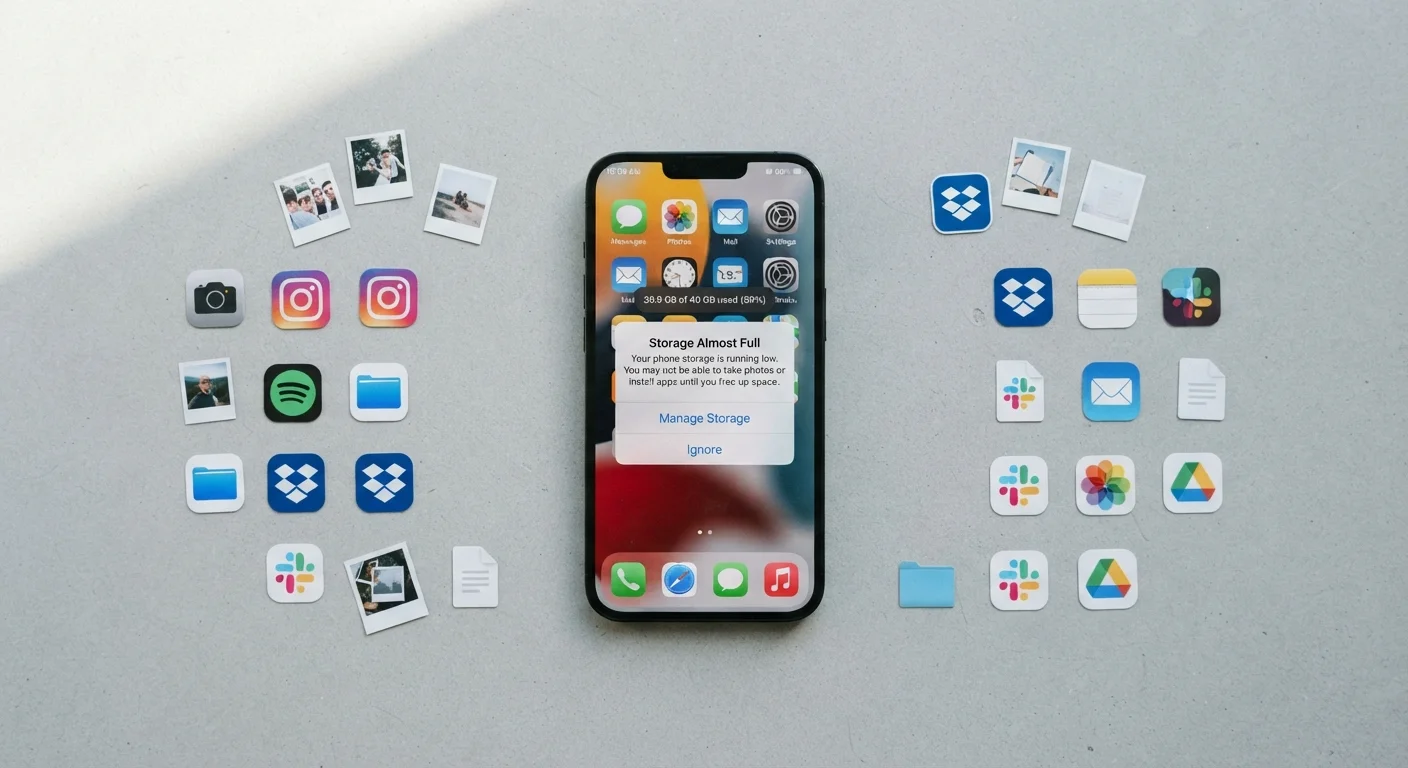
Photo credit: SyndicateExpert.com | Information At The Ready
Cache files, offline maps, app data, and duplicate photos quietly eat up space. Learn where storage goes and how to reclaim it without losing anything important.
Key Takeaways
- App cache files, offline maps, and duplicate photos are among the biggest hidden storage drains.
- You can reclaim significant storage space without deleting photos or apps you actually use.
- Built-in phone storage tools surface most hidden clutter without needing third-party software.
- Streaming app downloads and messaging media accumulate quietly and are easy to overlook.
- Regular storage audits — even once a quarter — prevent low-storage slowdowns before they happen.
Why Your Storage Disappears Without Warning
You bought a phone with 128 GB of storage. You haven't downloaded that many apps. You deleted a bunch of old photos. And yet, somehow, you're staring at a "Storage Almost Full" warning again. This is one of the most common frustrations smartphone users face, and the culprit usually isn't the obvious stuff.
The files you intentionally save — photos, music, documents — represent only a fraction of what actually occupies your phone's storage. The rest is made up of invisible, automatically generated data: cache files, app residue, offline content, and duplicates that accumulate in the background without any action on your part. Understanding where these hidden drains come from is the first step toward reclaiming your space.
This article walks through the most common storage drains most people never think to check — and what you can do about each one. If you're also dealing with too many apps broadly, see our piece on why most of your downloaded apps go unused for a complementary perspective.
App Cache Files
Every app on your phone stores temporary data called a cache — files it saves locally so it doesn't have to re-download the same content repeatedly. This is useful for performance, but caches grow without limit unless you clear them. A social media app you've used for two years might have accumulated hundreds of megabytes of cached images, thumbnails, and videos you've already scrolled past.
On Android, you can clear cache for individual apps via Settings > Apps > [App Name] > Storage > Clear Cache. On iPhone, the equivalent is usually to offload and reinstall the app, since iOS manages cache differently. The good news: clearing cache doesn't delete your account, login, or personal data — the app simply rebuilds a fresh, smaller cache as you use it.
Social media caches can grow to hundreds of megabytes from content you've already scrolled past.
Offline Maps and Navigation Data
Offline maps are one of the most useful features navigation apps offer — download a region before a road trip and you'll have directions even without signal. But those downloaded regions are large, often running 500 MB to several gigabytes each, and people frequently forget to delete them after the trip ends. If you downloaded a map of a city you visited once and haven't opened the app since, that data is still sitting on your device.
Check your navigation app's settings for a "Downloaded Maps" or "Offline Maps" section and remove any regions you no longer need. If you rely on offline maps regularly, see our guide on offline-capable apps worth knowing before you lose signal for a broader look at how to use offline features strategically.
A single downloaded map region can occupy several gigabytes long after your trip ends.
Streaming App Downloads
Music, podcast, and video streaming apps let you download content for offline listening or viewing. This is convenient, but downloaded episodes and albums stack up fast — especially if the app auto-downloads new episodes of every podcast you subscribe to. A single downloaded season of a TV show can easily consume 5–10 GB.
Most streaming apps have a dedicated downloads section where you can see and delete offline content. It's also worth checking each app's settings for auto-download options and disabling any that are turned on by default. You may find the app has been quietly filling your phone with content you never asked for and haven't watched.
Auto-download settings in podcast and video apps can fill gigabytes without any action from you.
Messaging App Media
Every photo, video, voice message, GIF, and sticker sent through messaging apps gets saved to your device's local storage by default. If you're in group chats, this adds up remarkably fast. A busy group chat over a year might have delivered thousands of images — many of them memes, screenshots, and low-quality videos — all quietly stored on your phone.
Check your messaging app's settings for a storage or data management section, where you can usually see a breakdown of media by conversation and delete in bulk. You can also turn off automatic media saving so new incoming files don't auto-download unless you choose to keep them. This single change is often one of the highest-impact steps in a storage cleanup.
Group chat media saved automatically over months can amount to gigabytes of rarely revisited content.
Duplicate and Burst Photos
Modern smartphones make it easy to take dozens of near-identical shots in seconds — burst mode, Live Photos on iPhone, and motion photos on Android all create multiple files per shutter press. Over time, your camera roll can fill with clusters of almost-identical images where you only ever intended to keep one. HDR processing also saves multiple versions of the same photo on some devices.
Both iOS and Android now include built-in duplicate detection in the Photos app. On iPhone, look under Albums > Duplicates. On Android, the Google Photos app offers a similar feature. Reviewing and merging duplicates is safe — the system keeps the best version — and it's common to recover several gigabytes this way on phones that haven't been audited in a while.
Built-in duplicate detection in your Photos app can safely recover several gigabytes in one session.
Old App Data Left Behind After Uninstalls
Uninstalling an app doesn't always remove everything it stored. On some Android devices, app-associated folders in internal storage — particularly media or document folders created by the app — can persist after the app is gone. This is sometimes called residual data or orphaned files. A game you deleted six months ago might have left behind several hundred megabytes of asset files in a folder that no longer has an app connected to it.
A file manager app (both iOS and Android have built-in versions) can help you navigate to the Downloads folder and other directories to find folders associated with apps you no longer have. This is also a good time to cross-reference with your digital file organization habits more broadly.
Deleted apps can leave behind orphaned folders that persist unnoticed for months.
Taking Back Control of Your Space
Storage management doesn't have to mean deleting things you care about. In most cases, the bulk of recoverable space comes from data you never intentionally created: cache buildups, redundant downloads, forgotten offline content. Both Android and iPhone include built-in storage analysis tools under Settings that break down exactly where your gigabytes are going — spending five minutes there is usually all it takes to identify the biggest offenders.
Make Storage Audits a Quarterly Habit
Set a reminder once every three months to open your phone's built-in storage analyzer under Settings. It takes less than ten minutes to identify the biggest space consumers and clear what you no longer need. Catching clutter early prevents the slowdowns and update failures that come with a consistently full device.
If you're thinking about how local storage interacts with the cloud services you already use, our guide on how cloud and local storage actually work together explains the tradeoffs clearly. And if you're preparing to sell or hand off an old device, read up on what a proper device wipe actually involves before you do anything else.
A lean phone isn't just about having room for new photos. Devices with adequate free storage tend to run more smoothly, update more reliably, and feel faster in everyday use. Treating a quarterly storage audit as routine maintenance — the same way you'd clear out a cluttered drawer — keeps the problem from quietly compounding over time.

Author
Tech & Devices Editorial Team
Tech & Devices Editorial Team is the collective byline for our editorial team and contributor network. Articles published under this byline or an editorial pen name are researched, written, and reviewed according to our editorial standards for clarity, consistency, and independence before publication.
View all articles →