
Cloud Storage, Local Storage, and the Sync Layer in Between
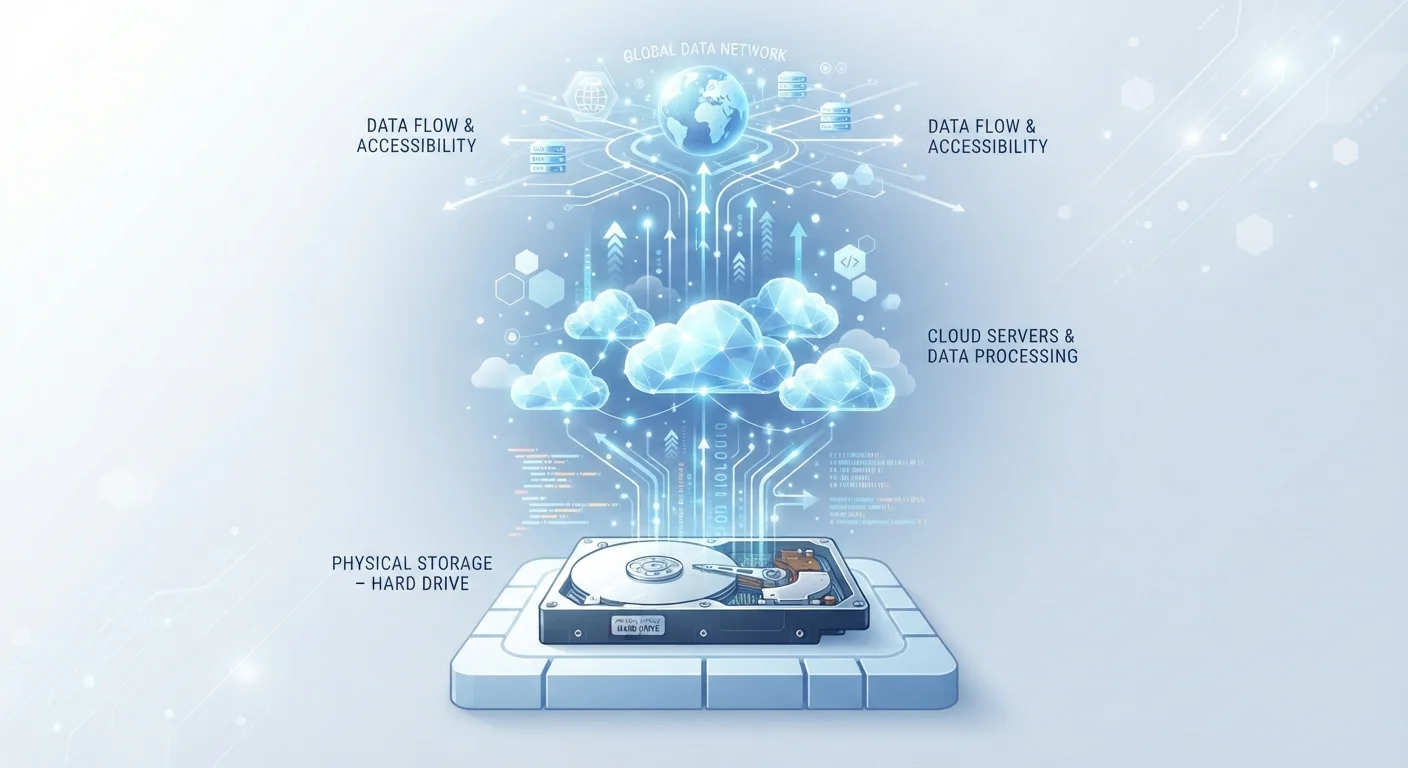
Photo credit: SyndicateExpert.com | Information At The Ready
In this article
Learn how cloud storage, device storage, and sync services actually work together—and what that means for your files and privacy.
Key Takeaways
- Local storage is fast and private but disappears if your device is lost, stolen, or fails.
- Cloud storage provides backup and multi-device access but depends on internet connectivity and a third-party provider.
- The sync layer is software—not storage itself—that keeps local and cloud copies aligned.
- Files marked 'online-only' live in the cloud and are downloaded on demand, freeing device space.
- Understanding sync status prevents accidental data loss when working offline.
- Privacy varies significantly between storage providers—read the terms before uploading sensitive files.
What Each Layer Actually Does
Think of local storage as your filing cabinet at home—it's immediate, private, and available whether the power grid is working or not. Your device's internal drive or SSD holds everything from your operating system to your photos and documents. The trade-off is obvious: if the cabinet is destroyed or stolen, the files go with it.
Cloud storage flips that trade-off. Your files live on a server maintained by a provider, accessible from any device with your login credentials and an internet connection. The convenience is real—lose your phone, recover everything on a new one. But you're now dependent on that provider's reliability, security practices, and continued existence.
Neither option alone is complete, which is why the sync layer exists. It's the middleware—an app or built-in OS feature—that watches for changes in a designated folder and mirrors those changes to the cloud, to your other devices, or both. The sync layer doesn't store anything itself; it's an automated courier.
94%
Enterprises using cloud services
According to Flexera's State of the Cloud report, the vast majority of organizations now use cloud infrastructure—a trend reflected in consumer service adoption as well.
30 days
Typical free-tier version history window
Many mainstream sync services retain previous file versions for approximately 30 days on free plans, with extended periods available on paid tiers.
60%
Smartphone users with cloud backup enabled
Industry surveys consistently find that roughly 60% of smartphone owners use some form of automatic cloud backup, though many are uncertain exactly what is being backed up.
How the Sync Layer Actually Works
When you save a document inside a sync-enabled folder, the sync client on your device detects the change. It uploads the modified file (or just the changed portion, using a technique called delta syncing) to the cloud. Any other device signed into the same account downloads that update, usually within seconds on a fast connection.
This process has a few important nuances worth knowing. First, sync is not instantaneous—there's a brief window where your local file is ahead of the cloud copy. Closing a laptop mid-upload or losing Wi-Fi at that moment can leave files in a conflicted state. Most services handle this by creating a conflict copy rather than overwriting data, but it's worth understanding the risk when working on shared documents.
Second, sync services increasingly use online-only or placeholder files. The file appears in your folder, but the content isn't on your device until you open it. This frees up local storage significantly—handy if you have a device with limited capacity—but means those files disappear from reach when you're offline. You can usually right-click and choose to make a file or folder 'available offline' to pre-download it.
For a practical look at managing apps across multiple devices, see syncing apps across devices without losing your mind.
Privacy and Security Considerations
Where your files sit matters for privacy. Local storage is, by default, only as secure as your device itself—a strong login password and full-disk encryption are baseline protections worth enabling on any computer or phone. Cloud storage introduces a third party into the equation.
Most providers encrypt files in transit (between your device and their servers) and at rest (while sitting on their servers). However, standard encryption doesn't mean the provider can't access your files—they hold the encryption keys. If privacy is a priority, look for services offering end-to-end encryption or zero-knowledge encryption, where only your credentials unlock the data. This distinction is especially important for sensitive documents like tax records, medical files, or legal paperwork.
It's also worth considering what happens when files sync to devices you share or no longer own. Revoking device access through your account settings—rather than just logging out of an app—is the more thorough approach. Our broader online safety guidance covers device security in more depth.
Practical Strategies for Everyday Users
A reasonable approach for most people combines both storage types intentionally. Keep actively used files synced so they're always current across your devices. For large media archives, completed projects, or sensitive documents you rarely need on the go, local or external drive storage avoids the ongoing exposure of cloud hosting.
Version history is one of the most underused features of sync services. Most providers retain previous versions of files for anywhere from 30 days to several months (some longer with paid plans). If you accidentally overwrite a document or delete something important, version history is often how you recover it—but only if you know to look. Check your service's settings to confirm this feature is active and to understand its limits.
For those managing files across apps and tools, organizing your digital life offers a broader framework for keeping things manageable. And if you're weighing whether to use a native desktop app versus a browser-based interface for your storage service, native apps vs. browser-based tools walks through the relevant trade-offs.
Test Your Offline Access Before You Need It
Don't wait until you're on a plane or in a dead zone to discover your critical files are online-only. Before any trip or meeting where connectivity is uncertain, open your sync app and explicitly mark the folders you'll need as 'available offline.' Give it a few minutes to download while you still have a connection.
Frequently Asked Questions

Author
Tech & Devices Editorial Team
Tech & Devices Editorial Team is the collective byline for our editorial team and contributor network. Articles published under this byline or an editorial pen name are researched, written, and reviewed according to our editorial standards for clarity, consistency, and independence before publication.
View all articles →