
Syncing Apps Across Devices Without Losing Your Mind
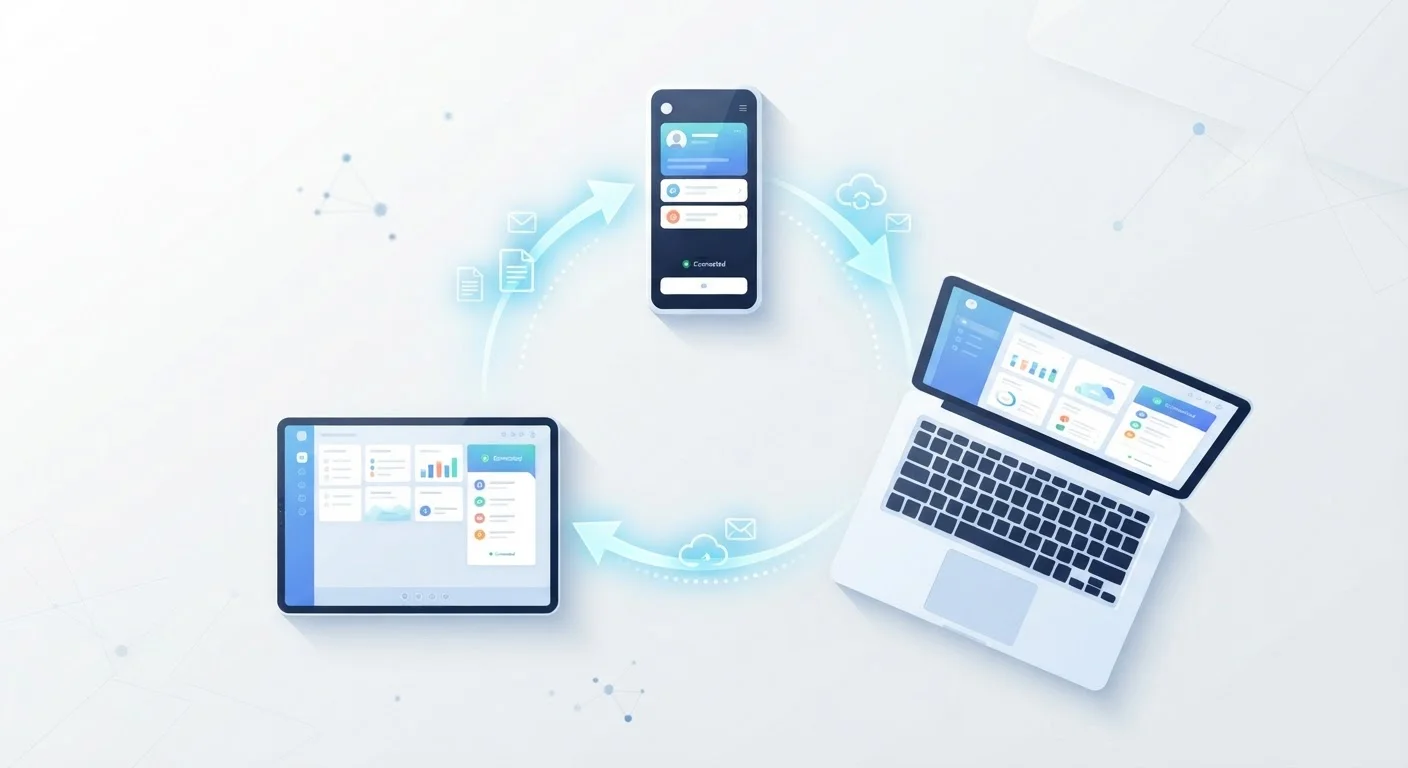
Photo credit: SyndicateExpert.com | Information At The Ready
In this article
Step-by-step guidance on keeping your apps, settings, and data consistent across your phone, tablet, and computer.
Key Takeaways
- Using a single account ecosystem (Apple, Google, or Microsoft) dramatically simplifies cross-device syncing.
- Audit your apps first — only sync what you actually use regularly across multiple devices.
- Sync settings, not just data: passwords, preferences, and notification settings matter too.
- Cloud services bridge the gap between platforms when your devices span different ecosystems.
- Regular maintenance — checking sync status and clearing stale data — prevents long-term chaos.
Why App Syncing Goes Wrong
Most people don't set out to create a mess — it accumulates gradually. You install an app on your phone, forget to add it to your tablet, and suddenly your task list lives in three places at once. Notes don't match. Passwords are missing on your laptop. A file you edited on one device hasn't shown up on another. Sound familiar?
The root cause is usually one of three things: relying on multiple disconnected ecosystems, skipping the account sign-in step when setting up an app, or assuming sync happens automatically without verifying it. Understanding these failure points is the first step to fixing them. For a deeper look at what's actually happening under the hood, see our article on how cloud storage and sync services work together.
Before diving into steps, it helps to do a quick audit. Open each device and list the apps you use daily or weekly. You'll likely find redundancies and gaps that explain exactly where your sync problems originate.
What You'll Need Before You Start
Getting sync right requires a few things in place ahead of time. Rushing this phase is where most people lose ground.
What you will need
Once you've confirmed these prerequisites, you're ready to work through the setup systematically — device by device, app category by app category.
Step-by-Step: Setting Up Reliable App Sync
Follow these steps in order. Skipping ahead often creates the exact inconsistencies you're trying to eliminate. If you find yourself juggling too many apps in the process, our article on how app-switching becomes its own productivity problem is worth a read alongside this guide.
Choose one primary ecosystem and commit to it
Decide whether your primary account will be Google, Apple, or Microsoft. This doesn't mean every app must be from that company, but your calendar, contacts, and browser should anchor to one identity. Mixed ecosystems are the single biggest driver of sync failures.
Sign into each app with the same account on every device
Open every app on your list and confirm you're logged in with the same account across all devices. It sounds obvious, but old installs often use outdated credentials or were set up as guests. Check the account settings screen — not just the home screen — to verify.
Enable sync permissions explicitly in each app
Many apps require you to turn on sync manually. Go into each app's settings and look for a "Sync," "Backup," or "Account" section. Toggle sync on, and if given a choice between Wi-Fi only and cellular, select what suits your usage. Confirm the last-synced timestamp where visible.
Verify sync at the operating system level
On iOS/iPadOS, go to Settings → [Your Name] → iCloud and confirm which apps are toggled on. On Android, go to Settings → Accounts and check sync status per account. On Windows, check Settings → Accounts → Sync your settings. These system-level switches override app-level sync if disabled.
Test sync with a small, intentional change
Create a test note, add a calendar event, or update a contact on one device, then wait 60 seconds and check that the change appears on a second device. This confirms the full sync loop is working. If the change doesn't appear, check your internet connection and then revisit Steps 2 and 3.
Remove or archive apps you don't use across multiple devices
Unused apps with stale sync permissions create background noise — they consume storage and may conflict with active apps sharing the same data category. If an app only lives on one device and you never need it elsewhere, disable its sync or uninstall it from other devices entirely.
Once your core apps are syncing correctly, consider extending the same discipline to your files and notes. Organizing your digital life across notes, files, and tasks is a natural next step.
Maintaining Sync Over Time
Setting up sync is a one-time effort; keeping it working is an ongoing habit. Apps update frequently, and an update occasionally resets permissions or account connections — particularly after major operating system upgrades.
Check Sync After Every Major OS Update
Operating system updates — especially major annual releases on iOS and Android — sometimes reset app permissions, including sync access. After any significant update, spend five minutes opening your key apps and confirming their sync status. Catching a broken connection early prevents data from diverging across devices for weeks without your knowledge.
Set a monthly reminder to open your sync settings on each device and confirm that data is current. Pay particular attention to apps you use for work or finances — a stale task list or missing calendar event can have real consequences. Also revisit your notification setup periodically: managing notifications across all your devices pairs directly with good sync hygiene, since sync and alerts work hand in hand.
Finally, if you travel or work in areas with spotty internet, make sure your most critical apps can function offline. Our guide to offline-capable apps worth knowing about covers the categories that matter most when connectivity drops.
A well-synced setup isn't just about convenience — it's about reclaiming mental bandwidth. When your tools work together reliably, you spend less time managing technology and more time using it. For broader guidance on getting more from your everyday devices, explore the Everyday Gadgets hub.

Author
Tech & Devices Editorial Team
Tech & Devices Editorial Team is the collective byline for our editorial team and contributor network. Articles published under this byline or an editorial pen name are researched, written, and reviewed according to our editorial standards for clarity, consistency, and independence before publication.
View all articles →