
Notification Overload: Regaining Control Across All Your Devices
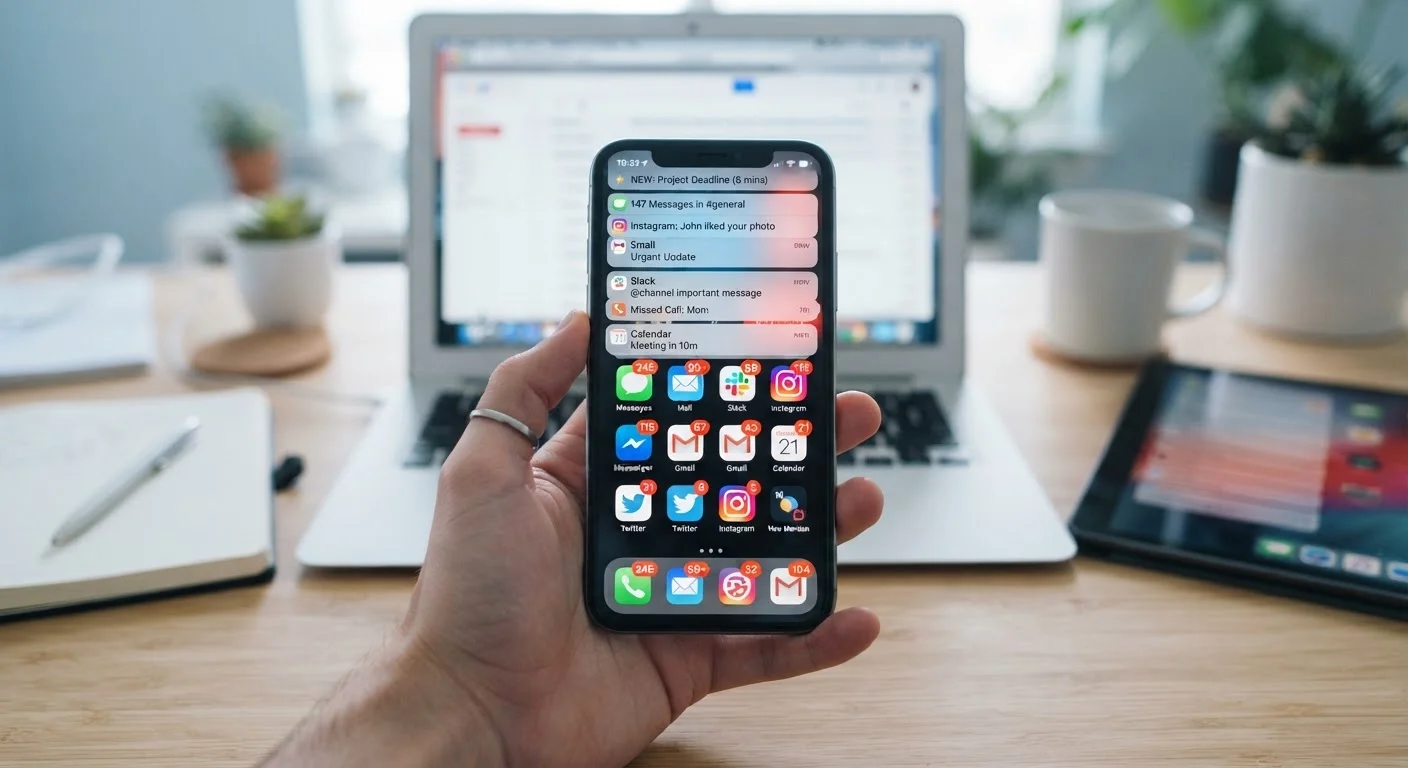
Photo credit: SyndicateExpert.com | Information At The Ready
In this article
Constant pings fragment attention and erode focus. A step-by-step approach to auditing and restructuring notifications on phones, tablets, and computers.
Key Takeaways
- Most apps request notification permissions they don't need — auditing them takes less than an hour.
- Grouping notifications by priority, not by app, drastically reduces mental interruptions.
- Focus modes and Do Not Disturb schedules are built into most modern operating systems at no cost.
- Reducing notifications on one device is more effective when you apply the same logic across all devices.
- A quarterly review keeps notification creep from building back up over time.
Why Notification Overload Happens
Every app installed on your phone, tablet, or computer is competing for your attention. Most request notification permissions during setup, and most users tap "Allow" without thinking twice. Over months and years, that adds up to dozens of apps sending alerts that range from genuinely useful to completely irrelevant.
This isn't accidental. As explained in our overview of how app alerts are designed to demand attention, developers use notifications as a re-engagement tool — their goal is to pull you back into the app, not to serve your needs. Understanding that distinction is the first step toward taking back control.
The practical consequence is attention fragmentation. Each interruption — even one you dismiss in two seconds — breaks concentration and takes time to recover from. When the same alert fires on your phone, tablet, and laptop simultaneously, the problem multiplies. Constantly switching between apps compounds this further, turning a notification habit into a productivity drain.
Start With Your Most-Used Device
If auditing every device at once feels overwhelming, start with the one you pick up most often — usually your smartphone. Even a single-device audit produces immediate, noticeable relief. You can extend the same system to other devices in a follow-up session.
What You Need Before You Start
This process works on any major platform — iOS, Android, macOS, and Windows — and requires no additional software. You'll work entirely within the settings your devices already provide.
What you will need
Step-by-Step: Auditing and Restructuring Your Notifications
Follow these steps in order. Starting with a full audit before making changes prevents you from fixing one device while ignoring others.
Run a full notification audit on each device
Open your device's main Settings app and navigate to Notifications (iOS/macOS) or Apps & Notifications (Android/Windows). You'll see a list of every app that has been granted notification access.
Scroll through the entire list and ask one question for each app: Has this app sent me a notification in the past week that I was glad to receive? If the answer is no, mark it for the next step. Do this on every device separately — permissions are stored per device, so a change on your phone does not carry over to your tablet.
Revoke permissions for low-value apps
For every app you marked in Step 1, turn off notifications entirely. On most platforms this is a single toggle next to the app name. Common candidates include: shopping apps, games, social media platforms you check on your own schedule, and utility apps like flashlights or unit converters.
Be decisive here. You can always re-enable an app later if you discover you miss something important — the cost of reverting is low, while the cost of continued interruption is ongoing.
Tier your remaining alerts by priority
For apps you decided to keep, configure how they notify you rather than leaving it at the default. Most platforms offer at least three modes:
- Full alert — banner, sound, and badge. Reserve this for direct messages from real people and time-sensitive alarms.
- Silent badge only — no sound, no banner, just a number on the app icon. Good for email, news, and social apps you check intentionally.
- Off — no notification of any kind. Appropriate for everything else.
On iOS, these settings live under Settings > Notifications > [App Name]. On Android, long-press any notification and tap the settings gear. On Windows 11, go to Settings > System > Notifications.
Set up a Focus mode or Do Not Disturb schedule
After reducing the volume of alerts, add a time-based layer of protection using your device's built-in focus tools. On iOS and macOS, Focus modes let you specify which apps and contacts can break through during set hours. On Android, Do Not Disturb schedules work similarly. Windows 11 offers Focus Sessions via the Clock app.
A practical starting schedule for most people: silence all non-essential notifications from 9 PM to 8 AM, and during any block of work time where deep concentration matters. Allow calls and messages from your household contacts as exceptions.
Repeat the audit on your remaining devices
Return to Step 1 and complete the same process on each remaining device — tablet, secondary phone, laptop, or desktop. The specific settings menus differ slightly by platform, but the underlying logic is identical: audit, revoke, tier, and schedule.
Pay particular attention to devices that mirror your phone's apps. Tablets and laptops often have the same apps installed but don't serve the same urgent communication purpose, making them strong candidates for more aggressive silencing.
Keeping Your Setup Working Long-Term
Notification creep is real — new app installs silently add themselves back to your alert stream if you don't catch them early. The solution is a lightweight quarterly review: open your notification settings, sort by most recent, and remove permissions for anything you don't recognize or no longer use.
If you've also been working to organize your digital life more broadly, treating notification management as part of that same discipline — rather than a one-time fix — will deliver lasting results. And if you use multiple devices, keeping your app settings consistent across them prevents the situation where your phone is calm but your laptop is still pinging constantly.
One last note: if you drive with your phone nearby, reducing notification volume matters beyond productivity. Our piece on distracted driving habits you may be overlooking covers how ambient alerts contribute to in-car distraction even when you're not actively checking your screen.

Author
Tech & Devices Editorial Team
Tech & Devices Editorial Team is the collective byline for our editorial team and contributor network. Articles published under this byline or an editorial pen name are researched, written, and reviewed according to our editorial standards for clarity, consistency, and independence before publication.
View all articles →