
Your Router Is Probably Slowing You Down — Here's What to Check
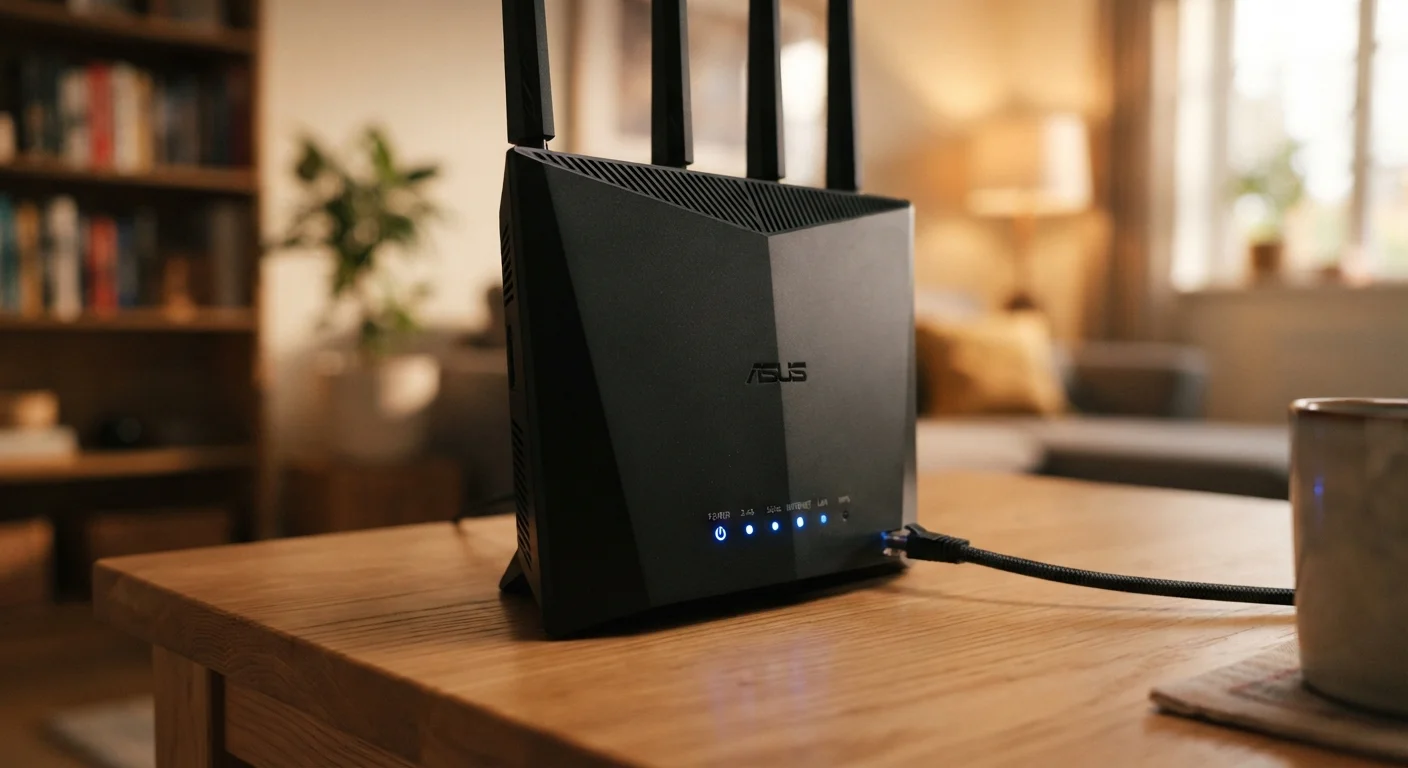
Photo credit: SyndicateExpert.com | Information At The Ready
In this article
Most Wi-Fi problems trace back to a handful of overlooked router settings. Learn what to audit before blaming your internet provider.
Key Takeaways
- Router placement and physical interference are among the most common — and most overlooked — causes of slow Wi-Fi.
- Outdated firmware can degrade both speed and security without any visible warning signs.
- The 5 GHz band is faster at close range; 2.4 GHz carries farther but is more congested.
- Rebooting your router regularly and limiting connected devices can meaningfully improve performance.
- Many Wi-Fi problems are fixable without upgrading your internet plan or buying new hardware.
Why Your Router Is Usually the Culprit
When your internet feels sluggish, the instinct is to blame your provider. But in many households, the bottleneck sits much closer to home — inside the router itself. Configuration choices made during setup (or never made at all), outdated software, and poor physical placement routinely cut available speeds in half before a single packet ever leaves your home.
The good news: most of these issues are fully within your control. This checklist walks you through the most impactful router settings and habits to audit, starting with the changes most likely to produce immediate results. No technical background is required — just access to your router's admin panel, which is typically reached by typing 192.168.1.1 or 192.168.0.1 into your browser's address bar.
While you're thinking about your home network, it's also worth reviewing broader security habits. Our guide to securing your home network covers complementary steps that protect every device connected to your router.
Physical Setup
Firmware and Software
Band and Channel Settings
Connected Devices and Traffic
Security Settings That Affect Performance
What to Have Ready Before You Start
A few quick preparations will make this audit faster and less frustrating. Gather the following before diving into your router's settings.
Router admin credentials
You'll need the username and password for your router's admin panel — often printed on a label on the device itself.
Ethernet cable
Connect a laptop directly to your router via ethernet to run an accurate baseline speed test, unaffected by Wi-Fi variables.
Speed test service
A browser-based speed test (run wired, then wireless) helps you measure the gap between your subscribed speed and what you're actually receiving.
Wi-Fi analyzer app
A free Wi-Fi analyzer for your phone or laptop shows nearby networks and which channels are congested, so you can pick a cleaner one.
Router manufacturer's support page
Use your router model's official support page to find the latest firmware version and step-by-step update instructions.
Common Mistakes That Compound the Problem
Don't Change Settings You Can't Reverse
Before making changes in your router's admin panel, take note of the current settings or screenshot the relevant pages. Some adjustments — particularly to DNS, firewall rules, or channel widths — can disconnect devices if applied incorrectly. Most routers have a factory-reset button that restores defaults, but it's easier to undo a specific change than to reconfigure everything from scratch.
Speed Tests Won't Be Accurate Over Wi-Fi Alone
Running a speed test on a device connected wirelessly already introduces router variables into your result. For a true picture of what your internet plan delivers, plug directly into the router with an ethernet cable and test from that connection first. That gives you a reliable baseline before you evaluate what your Wi-Fi setup is adding or subtracting.
Even after optimizing individual settings, two habits frequently undo the gains. First, many households leave a large number of smart-home devices, streaming sticks, and old phones permanently connected — each one occupying a slice of your router's processing capacity whether it's actively being used or not. Periodically reviewing your connected-devices list and removing anything you no longer use is one of the simplest ways to free up headroom.
Second, people often assume that switching to a newer internet plan will fix slow speeds, when the actual limitation is the router distributing that bandwidth. If your router is several years old, it may not be capable of delivering the full speed your plan provides, regardless of how it's configured. Understanding the difference between your subscribed speed and your delivered speed — which you can check with a free speed test run directly via an ethernet cable — tells you which side of the equation actually needs attention.
If wireless interference is part of your picture, it's worth knowing that Bluetooth devices and Wi-Fi operate in overlapping frequency ranges. For more on how nearby wireless signals interact, see our explainer on why Bluetooth keeps dropping.

Author
Tech & Devices Editorial Team
Tech & Devices Editorial Team is the collective byline for our editorial team and contributor network. Articles published under this byline or an editorial pen name are researched, written, and reviewed according to our editorial standards for clarity, consistency, and independence before publication.
View all articles →