
Getting More Out of Your Calendar App Than Just Setting Reminders
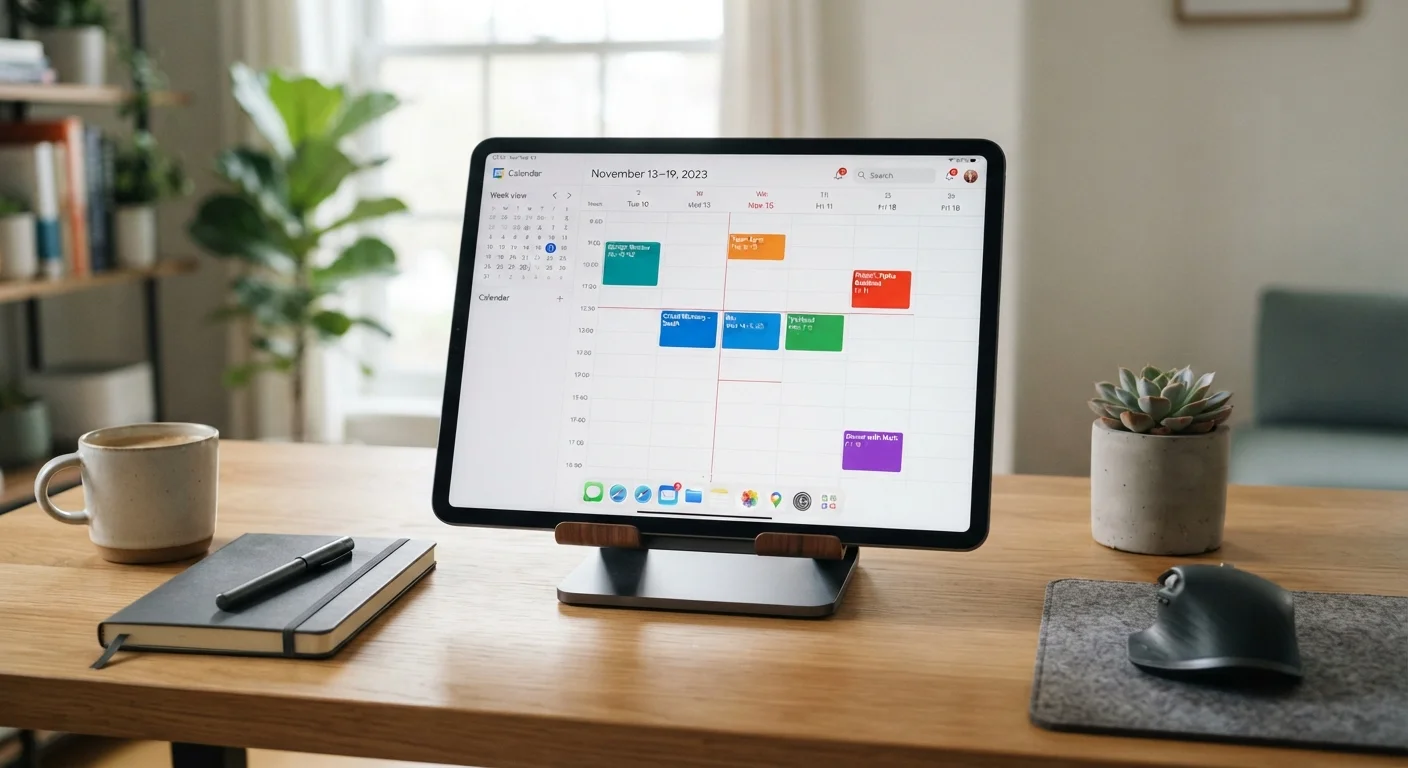
Photo credit: SyndicateExpert.com | Information At The Ready
In this article
Most people use maybe 20% of their calendar app's features. These practices help you actually manage time—not just log events.
Key Takeaways
- Color-coding and calendar layers let you separate life domains without switching apps.
- Time blocking turns your calendar into an active planning tool, not just an event log.
- Recurring events and travel buffers reduce mental load and prevent scheduling collisions.
- Shared calendars reduce coordination overhead for families, roommates, and small teams.
- Most calendar apps sync across devices and integrate with other productivity tools by default.
Your Calendar Is Doing Less Work Than It Should
Most people use their calendar app the same way they'd use a sticky note: jot down an appointment, maybe set a reminder, then move on. That workflow handles the minimum, but it leaves a lot of capability sitting idle. Calendar apps — whether you use Google Calendar, Apple Calendar, Outlook, or another — are built to support genuine time management, not just event logging.
As app overload becomes a common problem, it's worth asking whether the tools already on your phone are being used well before adding more. Your calendar is a good place to start. The practices below apply across most major calendar platforms and don't require any new subscriptions or downloads.
Practices That Actually Change How You Use Your Time
These aren't settings buried in an advanced menu — they're core features that make a measurable difference once you build them into a regular habit.
Use color-coded calendar layers to separate life domains
When work meetings, personal errands, medical appointments, and family events all appear in the same color, everything feels equally urgent and the week looks like noise. Separate layers with distinct colors let you read your week at a glance and identify imbalance — too much work, not enough personal time — before it becomes a problem.
Block time for focused work, not just meetings
Meetings and appointments appear on calendars by default, but the work that happens between them often doesn't. Time blocking — scheduling specific hours for focused tasks — prevents other people from filling those gaps and gives you a realistic picture of actual capacity. Without it, it's easy to accept one more meeting that wrecks a deadline.
Add travel and transition buffers between events
Calendar apps schedule events back-to-back by default, which works only if you're teleporting. Real life involves commutes, parking, mental switching, and the fact that meetings run long. Deliberate buffer blocks prevent the cascading lateness that makes a busy day feel out of control.
Set recurring events for routines you want to protect
Recurring entries remove the weekly decision overhead of scheduling predictable activities. More importantly, they hold space on your calendar so those activities don't get quietly displaced by whatever feels urgent that week. This applies to workouts, weekly check-ins, meal planning, and financial reviews alike.
Use the event description field to reduce inbox dependency
Most calendar events contain only a title, but the description field can hold a video call link, an address, prep notes, or a list of agenda items. Keeping that information attached to the event means you aren't digging through email thirty seconds before a meeting starts.
Share specific calendars selectively with others
Sharing an entire calendar with a partner or family member often creates too much noise. Most apps allow you to share individual calendars — such as a 'Family' layer — while keeping work details private. This reduces the coordination friction of 'are you free Saturday?' without sacrificing appropriate privacy.
Start With What You Can Do Today
You don't need to overhaul your entire schedule to get more out of your calendar. A few small changes, applied consistently, shift how your calendar feels — from a list of things happening to you to a tool you're actively working with.
If you also rely on a separate to-do list, it's worth thinking about how your calendar and task app divide responsibility. Different task management philosophies handle the calendar-task boundary differently — knowing your preference helps you avoid duplication. For broader digital organization, see how to organize files, notes, and tasks without the chaos.

Author
Tech & Devices Editorial Team
Tech & Devices Editorial Team is the collective byline for our editorial team and contributor network. Articles published under this byline or an editorial pen name are researched, written, and reviewed according to our editorial standards for clarity, consistency, and independence before publication.
View all articles →