
Password Managers: What They Do, How They Work, and Why Security Experts Rely on Them
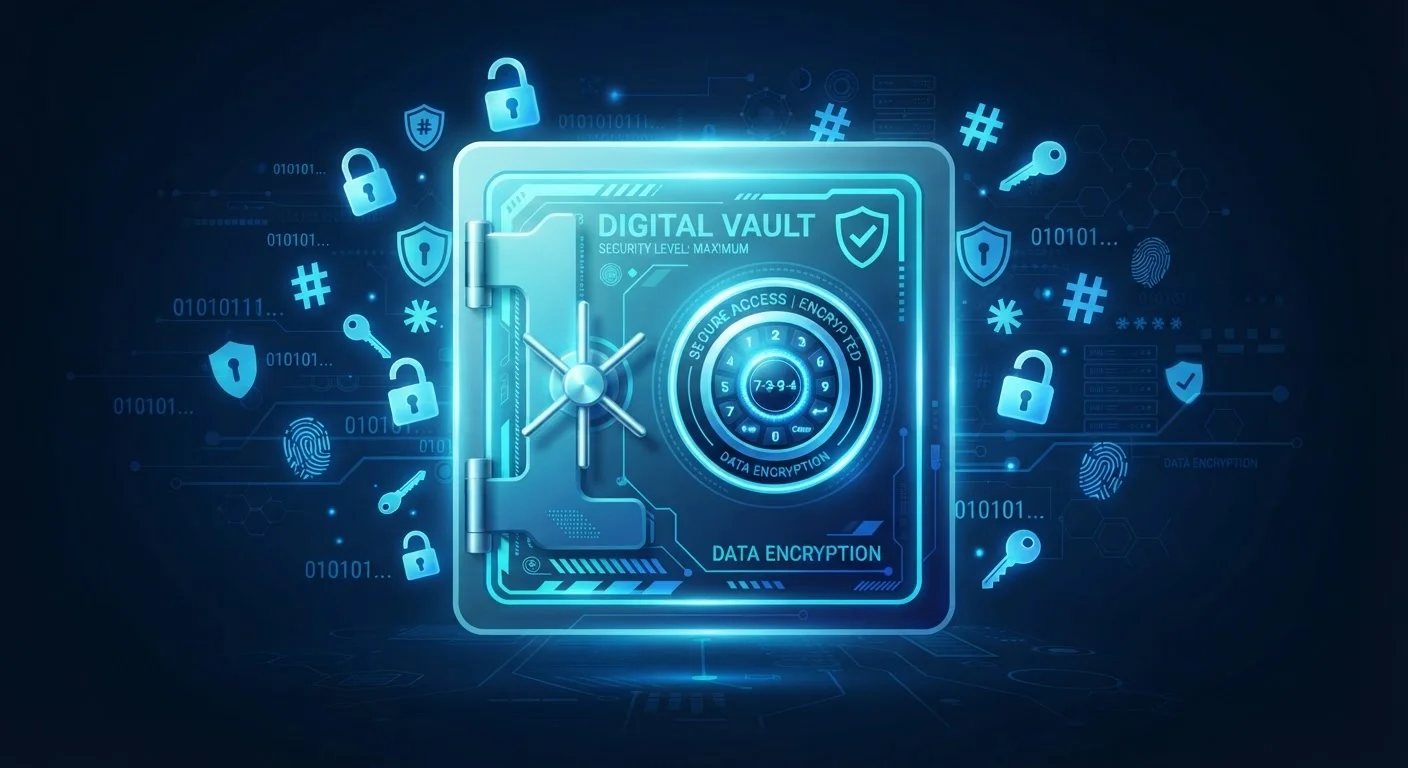
Photo credit: SyndicateExpert.com | Information At The Ready
In this article
A clear breakdown of how password managers store and protect your credentials—and what to understand before trusting one with your accounts.
Key Takeaways
- Password managers encrypt your credentials locally before any data leaves your device.
- A strong master password is the single key that protects everything else in your vault.
- They generate long, random, unique passwords that humans cannot reliably create themselves.
- Reusing passwords is one of the most common ways accounts get compromised in breaches.
- Most password managers work across browsers and devices through apps or browser extensions.
- Trade-offs exist, but the security benefits outweigh the risks for most everyday users.
What a Password Manager Actually Is
A password manager is an application that stores, organizes, and retrieves your login credentials — usernames, passwords, and related account details — so you don't have to memorize them. Think of it as a digital safe: you remember one strong combination (your master password), and the safe handles everything else.
The core problem it solves is real. Most people have dozens of online accounts, and human memory isn't equipped to handle dozens of unique, complex passwords. The predictable workaround — reusing the same password across multiple sites — is one of the leading causes of account takeovers. When a breach exposes your credentials on one site, attackers test that same combination everywhere else. This technique, called credential stuffing, is automated and extremely widespread.
Password managers break that chain by making it practical to have a different, strong password for every account. For a broader look at digital habits that silently increase risk, see common security shortcuts to avoid.
Master password
The single password you create to lock and unlock your password manager vault. It must be strong because it protects everything else you store.
AES-256 encryption
A widely adopted standard for scrambling data so it can only be read by someone with the correct key. It is the same standard used to protect sensitive government and financial data.
Zero-knowledge architecture
A design approach where the service provider stores only encrypted data and has no way to read your passwords, even if compelled to or hacked.
Credential stuffing
An attack method where hackers take username and password pairs leaked in one breach and automatically try them on other websites, exploiting password reuse.
Vault
The encrypted database inside your password manager where all your stored credentials and notes are kept.
Breach monitoring
A feature that checks whether your email or stored credentials have appeared in a known data breach and alerts you so you can change affected passwords promptly.
How Password Managers Store and Protect Your Data
The security model behind a password manager hinges on encryption — specifically, AES-256 encryption, a widely used standard that scrambles data into an unreadable form without the correct key. Your master password is never stored by the provider; instead, it is used to derive the encryption key that locks and unlocks your vault.
Most reputable managers use a zero-knowledge architecture, meaning the company itself cannot see your passwords. Encryption and decryption happen on your device. What travels to their servers — if you use cloud sync — is already encrypted data that is meaningless without your key.
When you create an account, your master password is processed through a technique called key derivation, which makes it computationally expensive to guess. Even if someone obtained your encrypted vault file, brute-forcing the master password would take an impractical amount of time, provided the master password is genuinely strong.
How the Daily Experience Works
Setup typically involves installing a browser extension and a companion app on your phone. During your first week, the manager learns your accounts: it prompts you to save credentials as you log into sites, and gradually your vault fills in. Many tools also offer an import feature if you have passwords saved in a browser already.
From there, the workflow becomes largely automatic. When you visit a login page, the extension detects it and offers to fill your username and password with a single click or tap. When you create a new account, the manager generates a random password — typically a string of letters, numbers, and symbols far stronger than anything most people would invent.
Most managers also sync your vault across devices, so the password you save on your laptop is available on your phone within seconds. Pairing a password manager with two-factor authentication on your most sensitive accounts adds a meaningful second layer of protection.
Make Your Master Password Count
Use a passphrase — four or more random, unrelated words strung together — rather than a single complex word with symbol substitutions. Passphrases are both easier to remember and significantly harder to crack. Never reuse your master password on any other site or service, and consider writing it down and locking it somewhere physically secure like a home safe.
Why Security Experts Consistently Recommend Them
Cybersecurity professionals overwhelmingly advocate for password managers because the alternative — human-managed passwords — has a poor track record at scale. The math is simple: a randomly generated 16-character password is orders of magnitude harder to crack than Summer2023!, and a password manager makes using such passwords effortless.
Password managers also frequently include breach monitoring, a feature that checks your stored email addresses against databases of known data breaches and alerts you when your credentials appear in a leak. This gives you a meaningful head start on changing compromised passwords before attackers use them.
For those working through a comprehensive review of their digital security, the Online Safety Audit checklist is a practical companion that covers passwords, devices, and more in plain language.
What to Understand Before You Commit
Password managers carry real trade-offs worth understanding. Concentrating all your credentials in one place does create a single point of failure — if your master password is compromised or guessed, an attacker gains access to everything. This makes the quality of your master password critical: it should be long, genuinely random, and used nowhere else.
There's also a dependency risk. If the service shuts down or you lose access to your vault, recovering all your credentials takes effort. Mitigation is straightforward: export an encrypted backup periodically and store it somewhere secure offline.
For a deeper look at what you gain and give up with this approach, this balanced breakdown of password manager trade-offs walks through both sides. And if you're just beginning to build safer digital habits overall, this grounded starting point for online safety is a clear, jargon-free introduction. Explore more resources in the Online Safety hub.
Frequently Asked Questions

Author
Tech & Devices Editorial Team
Tech & Devices Editorial Team is the collective byline for our editorial team and contributor network. Articles published under this byline or an editorial pen name are researched, written, and reviewed according to our editorial standards for clarity, consistency, and independence before publication.
View all articles →