
Subscriptions You Forgot You Had: Auditing Your App Spending
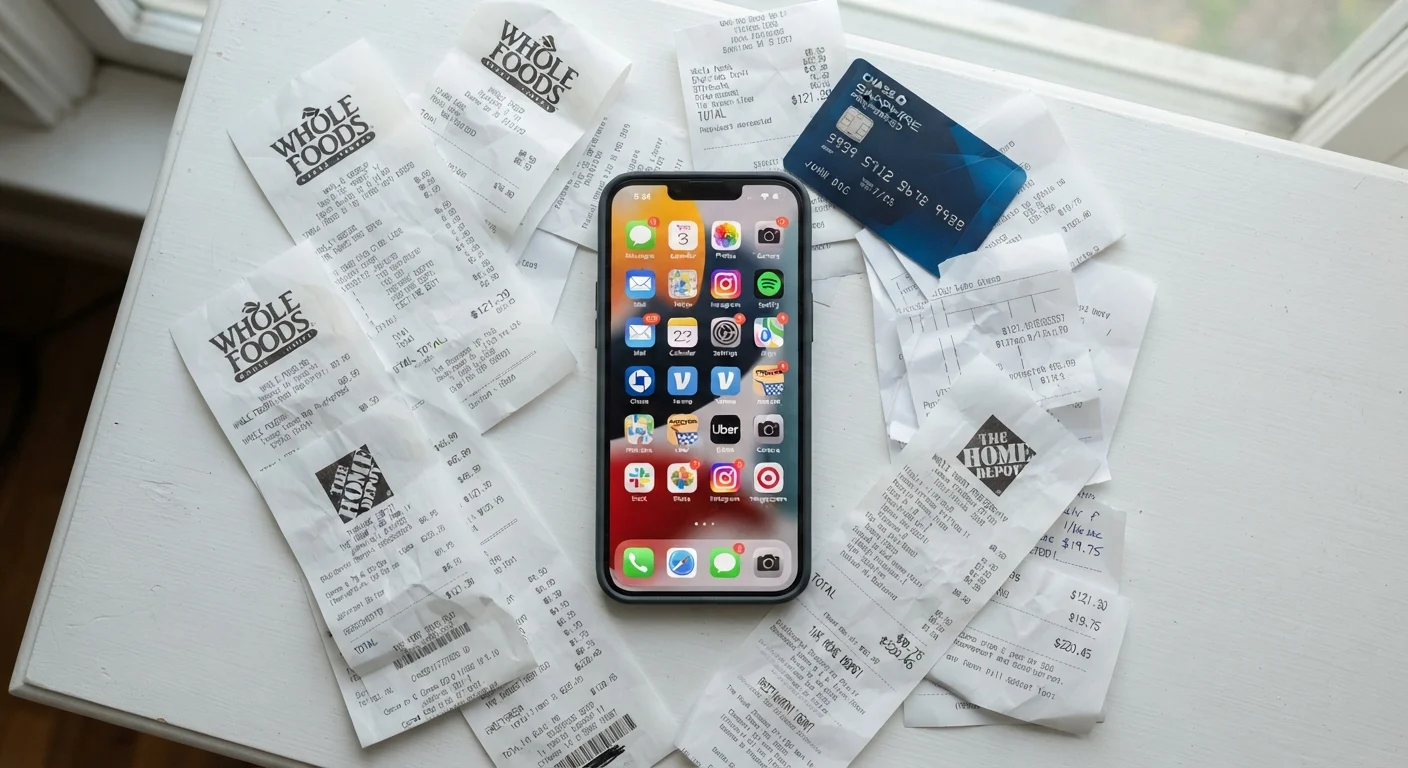
Photo credit: SyndicateExpert.com | Information At The Ready
A practical checklist for finding, reviewing, and canceling app subscriptions that are quietly draining your budget each month.
Key Takeaways
- Most people underestimate their total subscription spending by $30–$50 or more each month.
- App subscriptions hide across multiple platforms — Apple, Google, your bank, and third-party billers.
- Canceling unused subscriptions is one of the fastest, lowest-effort ways to free up budget room.
- A scheduled quarterly audit keeps subscription creep from building up again over time.
- Free trials that convert to paid plans are a leading source of forgotten charges.
Why App Subscriptions Are So Easy to Forget
Subscription billing is designed to be frictionless — which is great when a service is genuinely useful, and quietly expensive when it isn't. A $4.99 charge rarely triggers alarm bells on a bank statement. But three or four of those, plus a $12.99 streaming tier and two productivity apps you stopped using after January, and you're looking at $50 or more disappearing every month without a second thought.
Unlike a one-time purchase, subscriptions renew automatically. Free trials convert silently. Annual plans charge all at once and are easy to miss. And because apps live across multiple ecosystems — your phone's built-in store, the web, third-party payment processors — there's rarely one place to see everything at a glance.
This checklist walks you through a complete audit: finding every active subscription, evaluating whether each one earns its keep, and canceling what doesn't. If you want to fold the results into a broader spending plan, the Monthly Budget Setup Checklist is a natural next step. Subscription costs also show up as a commonly missed line item in spending categories most budgets overlook.
Apple Subscriptions Manager
Built into iOS and iPadOS Settings, this lists all active subscriptions billed through your Apple ID with renewal dates and amounts.
Google Play Subscriptions
Available in the Play Store on Android, this shows all active subscriptions tied to your Google account.
Bank or Credit Card Statement (PDF or Online)
The authoritative record of what has actually been charged — use at least three months of history to catch quarterly or irregular billing cycles.
Spreadsheet or Notes App
A simple place to build your master subscription list with cost, billing date, and keep/cancel status for each service.
Email Search
Your inbox holds years of subscription receipts and renewal notices — keyword searches surface charges you may have long forgotten.
Calendar App
Use it to set reminders before free trials end and to schedule your next quarterly audit.
How to Run Your Subscription Audit
The audit has four phases: gather all the sources where subscriptions can hide, list and categorize what you find, evaluate each one honestly, and cancel or downgrade what isn't pulling its weight. Set aside 30 to 60 minutes where you can work without interruption — you'll be moving between your phone, email, and bank statements.
Find Every Subscription Source
Build Your Master List
Evaluate Each Subscription
Cancel, Downgrade, and Maintain
Canceling Doesn't Always Stop the Next Charge Immediately
Many subscription services — especially those billed annually — do not issue refunds when you cancel mid-cycle. You typically retain access through the end of the paid period, but you won't be charged again after that. Always confirm the cancellation policy before you expect a refund, and check your statement after the next expected billing date to verify the charge did not recur.
Watch for Third-Party Billing Disguised as App Charges
Some charges that appear on bank statements under a generic or unfamiliar name are legitimate subscriptions billed directly by a company rather than through the Apple App Store or Google Play. If you can't identify a recurring charge, search the exact amount and billing descriptor name together before disputing it — it may be a service you signed up for on a website rather than through an app store.
Once you have a clear picture of what you're paying for, it's worth connecting those numbers to your broader financial situation. A financial check-in can show whether recurring subscriptions are competing with savings goals or debt payoff. And if app overload is part of the problem, understanding why most apps go unused can help you build a leaner phone setup going forward.

Author
Tech & Devices Editorial Team
Tech & Devices Editorial Team is the collective byline for our editorial team and contributor network. Articles published under this byline or an editorial pen name are researched, written, and reviewed according to our editorial standards for clarity, consistency, and independence before publication.
View all articles →