
What App Permissions Are Really Asking For
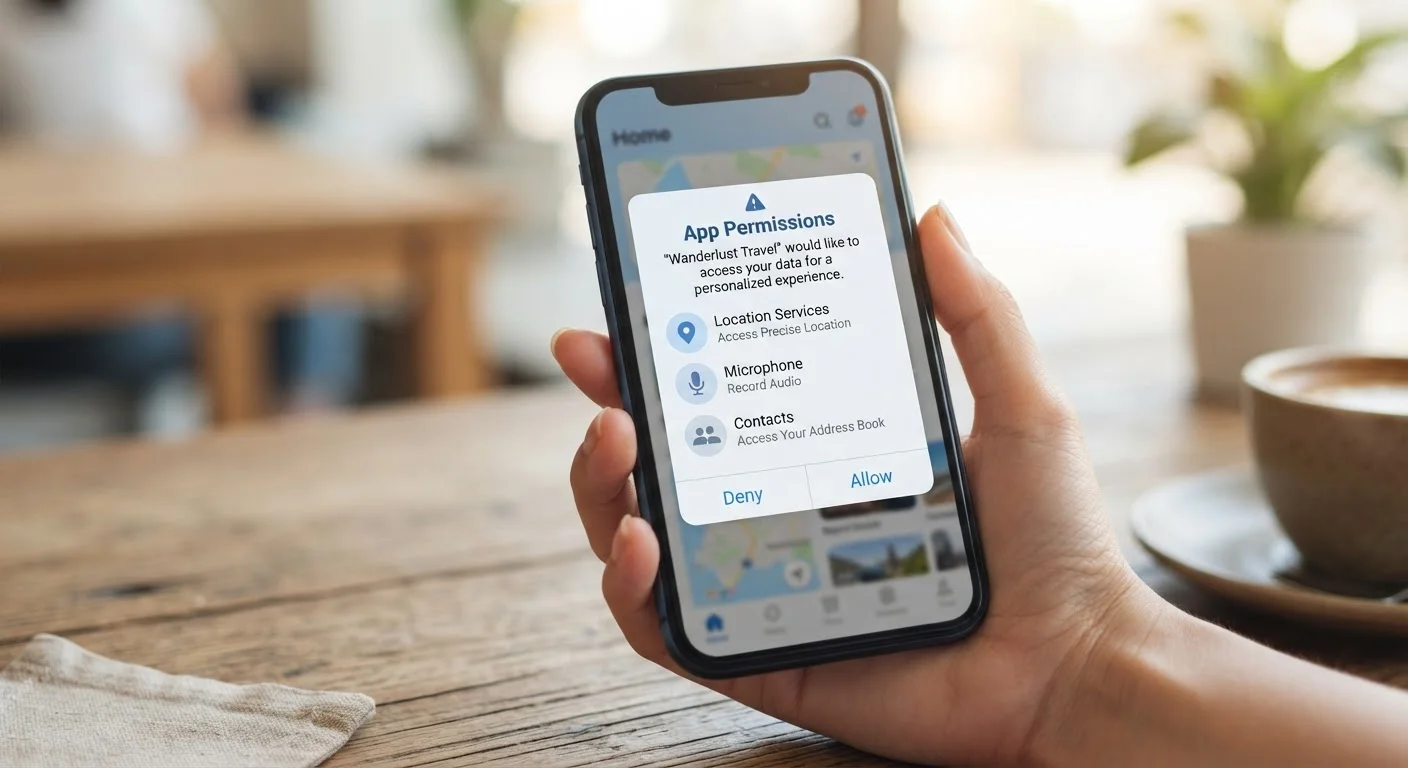
Photo credit: SyndicateExpert.com | Information At The Ready
In this article
Location, contacts, microphone—what do apps actually do with these permissions? A plain-language guide to knowing when to say no.
The Permission Prompt Is a Contract You're Signing
When you download a new app and tap through its setup screens, those permission requests aren't just formalities. Each one grants the app ongoing access to a specific part of your phone — your location, your camera, your stored contacts — often for as long as the app is installed. Most people tap Allow out of habit or impatience, but understanding what each permission actually unlocks helps you decide when access is justified and when it isn't.
Permissions generally fall into two tiers. Normal permissions are granted automatically and carry low risk — accessing internet connectivity, for example. Dangerous permissions require an explicit prompt because they access personal data or hardware: your microphone, camera, precise location, contacts list, call logs, and storage. These are the ones that deserve a second look.
If you've ever thought about how apps accumulate on your phone without contributing much, see our guide to app overload for context on trimming down to what you actually use.
Dangerous permission
An Android or iOS permission category that requires explicit user approval because it accesses sensitive hardware or personal data, such as location, camera, microphone, or contacts.
Precise location
GPS-level location data accurate to within a few meters. This is more invasive than approximate location and should only be granted to apps that genuinely require it for core functionality.
Permission Manager
A system-level tool on Android and iOS that lets users view and revoke app permissions by category, such as all apps with microphone access shown in one list.
One-time permission
A permission grant available on some platforms that allows an app to access a resource — such as the camera — only during the current session, after which it must ask again.
Normal permission
A low-risk permission that the operating system grants automatically without prompting the user, such as the ability to access the internet or check network connectivity.
What Each Common Permission Can Access
Here's a plain-language breakdown of the most frequently requested permissions and what granting them actually means:
- Location (precise vs. approximate): Precise location gives an app your GPS coordinates — accurate to within a few meters. Approximate location narrows it to a general area, roughly a city block. Navigation apps need precision. A recipe app asking for precise location almost certainly doesn't.
- Contacts: This grants access to every name, phone number, email address, and note in your address book — including people who never agreed to share their data with that app.
- Microphone: Allows the app to capture audio from your device's mic. Voice assistants and video calling apps need this. Casual games or productivity tools rarely do.
- Camera: Opens access to take photos or video. Essential for a camera app; suspicious on a flashlight or calculator utility.
- Storage / Files: Lets the app read and sometimes write files on your device. A document editor needs this; a weather app probably doesn't.
- Phone / Call Logs: Can read your call history and, in some cases, initiate calls. Very few apps have a legitimate reason for this.
- Bluetooth: Increasingly requested for proximity features and device pairing. Can also be used to track your location without using GPS.
Also consider what happens after you close an app. Background App Refresh can allow apps to continue pulling data even when you're not actively using them — a behavior that intersects directly with location and network permissions.
| Permission tiers | Normal (auto-granted) and Dangerous (user-prompted) (Android developer documentation) |
| Most sensitive permissions | Location, Microphone, Camera, Contacts, Call Logs |
| Location access options | Always, While Using App, One Time, or Never (iOS 14+ and Android 11+) |
| Where to audit on iPhone | Settings → Privacy & Security |
| Where to audit on Android | Settings → Privacy → Permission Manager (Path may vary by device manufacturer) |
| Recommended review frequency | Every 3 months |
When to Allow, When to Deny, and How to Review
A useful rule of thumb: the permission should match the app's core function. A mapping app needs location. A social platform might legitimately need the camera for photo uploads. But if a permission request doesn't clearly connect to what the app does, that's worth pausing on.
Both Android and iOS allow you to set permissions to only while using the app rather than always. Choosing this option for location-sensitive apps significantly reduces passive data collection. You can also grant camera or microphone access on a one-time basis on some platforms.
How to Audit What You've Already Granted
On iPhone/iPad (iOS): Go to Settings → Privacy & Security, then tap any category (Location Services, Microphone, Contacts, etc.) to see which apps have been granted access and adjust them individually.
On Android: Go to Settings → Privacy → Permission Manager (exact path varies slightly by manufacturer) to review permissions by category and revoke any that seem unnecessary.
Make this audit a quarterly habit. Apps update frequently, and new versions sometimes request additional permissions without much fanfare.
For broader privacy hygiene — beyond just permissions — it's worth understanding how personal data flows after it leaves your phone. Data broker sites can aggregate information tied back to your app usage patterns and device identifiers. And if you use social platforms, reviewing your social media privacy settings is a natural complement to controlling app permissions.
Finally, one underrated alternative: some apps don't need to be installed at all. For anything you use occasionally, using the browser-based version avoids the permission question entirely — the website can't access your microphone or contacts unless you explicitly choose to share them via the browser.

Author
Tech & Devices Editorial Team
Tech & Devices Editorial Team is the collective byline for our editorial team and contributor network. Articles published under this byline or an editorial pen name are researched, written, and reviewed according to our editorial standards for clarity, consistency, and independence before publication.
View all articles →